How to Find Sharing Links in SharePoint Online
Finding sharing links in SharePoint Online is not the same as reading a single tenant-wide report. Administrators need to combine policy, site context, item permissions, and evidence of what was actually observed.
Start with the question you need to answer
“Find all sharing links” can mean several things: identify sites that permit external sharing, locate files or folders with link-based permissions, find Anyone links, list authenticated guests, or determine which links are still active. Define the scope before choosing a method.
1. Review organization and site sharing policy
Open the SharePoint admin center and review the organization-level sharing settings for SharePoint and OneDrive. Then review individual sites, because a site can be more restrictive than the organization. Policy tells you what users are allowed to create; it does not prove which links exist today.
2. Use Manage Access for targeted investigation
For a known file or folder, the SharePoint or OneDrive Manage Access panel is the clearest interactive view. It can show direct access and link-based permissions. This works well for incident response or a small number of items, but it is not a practical tenant-wide inventory method.
3. Use PowerShell or Microsoft Graph with explicit coverage
At scale, administrators typically enumerate sites, document libraries, candidate items, and permissions. Microsoft Graph exposes drive items and permissions, but there is no universal tenant-wide “all sharing links” endpoint. Any automated inventory should record which sites and drives were scanned, when they were observed, and where Microsoft returned partial or unavailable information.
4. Classify the result
- Link scope: Anyone, organization, or specific people.
- Role: view or edit.
- Expiration where available.
- Resource type: file or folder.
- Recipients and identity coverage.
- Source site, library, owner, creator, and last-observed time.
Avoid common mistakes
Do not treat a permissive site policy as proof that an anonymous link exists. Do not treat a missing value as “no risk.” Do not assume an old export still represents current access. And do not overlook folders: a folder link can affect changing content over time.
Can Microsoft 365 administrators see every sharing link?
Not from one universally complete SharePoint admin-center screen. For a known item, Manage Access is useful for targeted investigation. Microsoft Purview audit records show sharing events such as link creation and use, but an event history is not the same as a current inventory. Tenant-wide scripts or products that use Microsoft Graph and SharePoint APIs must therefore state their scope, permissions, failures, and observation time.
A defensible inventory should record the site and item, link type, role, expiration, recipient or identity evidence where available, and whether the observation was complete or partial. See the SharePoint external-sharing audit framework and the guide to finding Anyone links.
Hero Links update: Microsoft is introducing one stable primary link whose audience can change over time. See the complete Microsoft 365 Hero Links guide before adapting tenant-wide discovery procedures.
Reviewed by the SharedLinks365 Technical Team — AGORA TECH S.r.l.
Need a repeatable inventory instead of a one-time investigation?
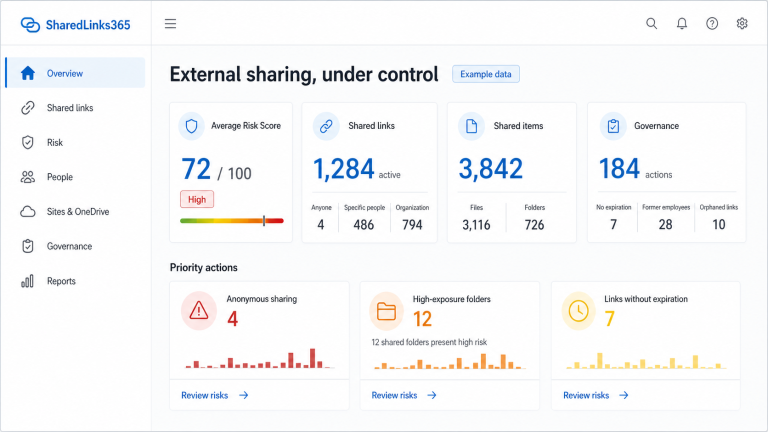
SharedLinks365 is being built to centralize observed sharing links and make coverage and risk factors visible.
Join Early Access