How to Find Anyone Links in Microsoft 365
Anyone links allow access without requiring the recipient to authenticate. They are useful for low-friction collaboration, but administrators should know where they exist, what they allow, and whether expiration is enforced.
What an Anyone link means
In SharePoint and OneDrive, an Anyone link can be used by anyone who obtains the URL. It can be forwarded, and the service cannot reliably associate every use with a named identity. Anyone sharing must be permitted by both the organization and the relevant site.
Check whether Anyone sharing is allowed
In the SharePoint admin center, review Policies → Sharing. The organization-level SharePoint setting defines the maximum allowed level; OneDrive cannot be more permissive. Individual sites can be configured more restrictively. Also review default link type, link permission, and expiration policy.
Policy is not inventory
Allowing Anyone links does not mean every site or item has one. Conversely, turning the capability off later requires careful validation of how existing links behave under the resulting policy. To locate actual links, inspect item permissions or use a coverage-aware inventory process.
Review the details that change priority
- Does the link grant view, edit, upload, or another supported role?
- Is the target a file or a folder?
- Does the link have an expiration date?
- How old is it, and when was it last observed?
- Is the item in a site intended for external collaboration?
A folder link may affect a changing set of items. That can increase review impact, but it does not prove that the content is sensitive.
Respond proportionately
Start with the highest-impact cases: anonymous edit access, no expiration, broad folder exposure, unexpected sites, or unclear ownership. Confirm business need before removing access. Where practical, replace anonymous sharing with authenticated guests or Specific people links, then verify the new permission state.
How should administrators verify Anyone links?
Start by checking whether Anyone sharing is permitted at organization and site level, but do not treat that policy as proof that active links exist. Current permission inspection answers what is accessible now; Microsoft Purview audit events such as AnonymousLinkCreated and AnonymousLinkUsed provide historical evidence when available. These are complementary evidence sources.
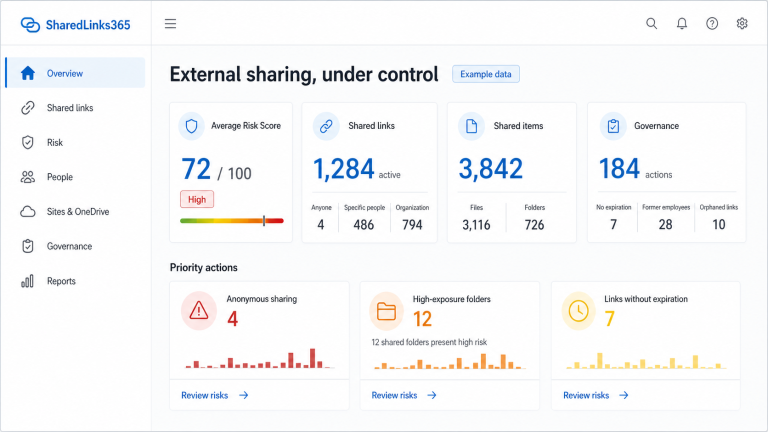
Record link role, expiration, folder or file scope, owner, site, and observation time before deciding whether to delete or replace a link. Compare Anyone and Specific people links, then review links without expiration.
Hero Links update: the new primary link can use Anyone only where policy permits, while earlier links remain under Other links. See the Microsoft 365 Hero Links guide.
Plan sharing and collaboration options
Manage sharing settings for SharePoint and OneDrive
Reviewed by the SharedLinks365 Technical Team — AGORA TECH S.r.l.